
Close an empty order on the POS:
- Go to the required order in the POS app.
- Click Pay in the open order.
- Select any payment method.
- Click Pay again.
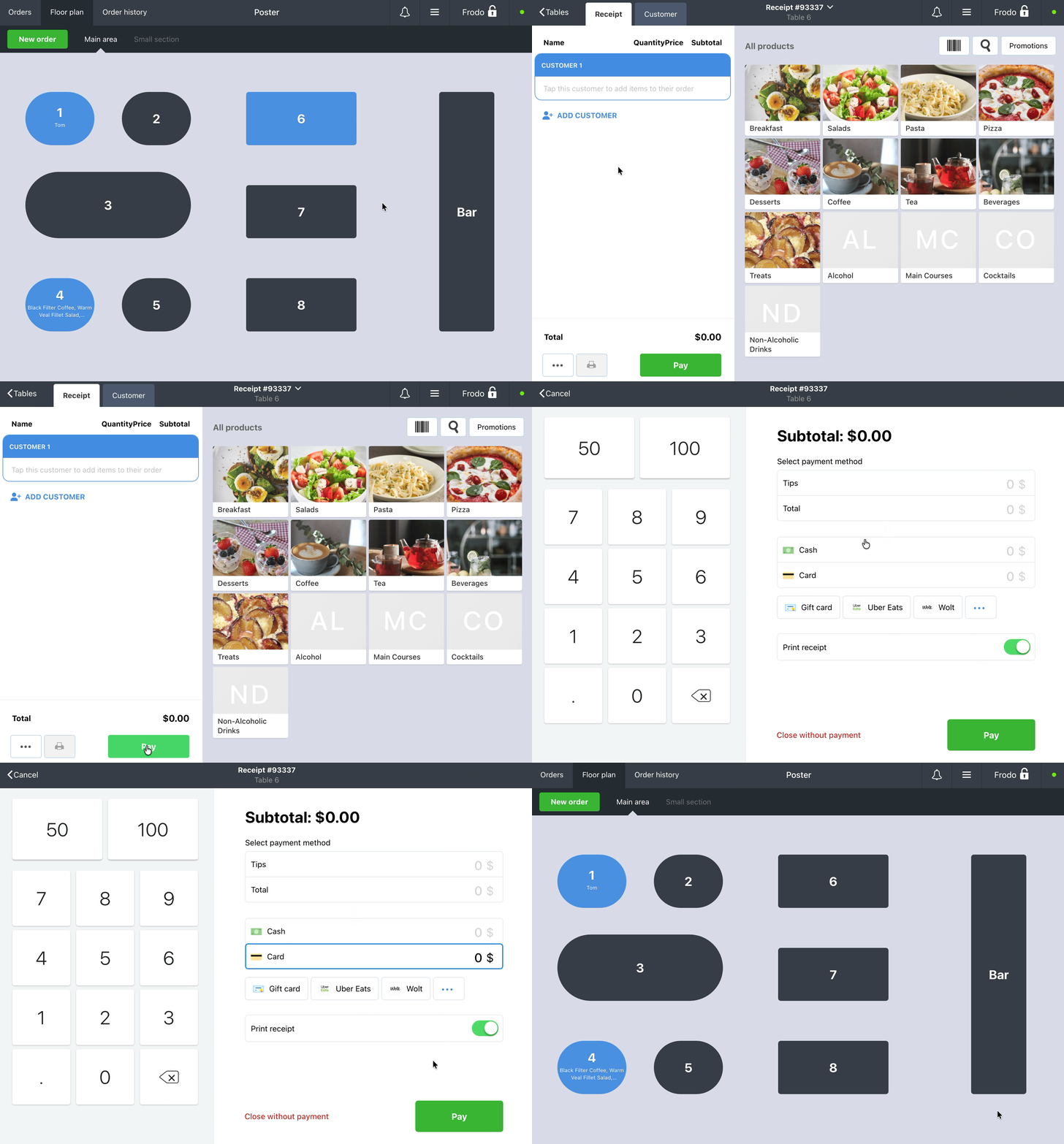
The order will be closed with a zero amount.
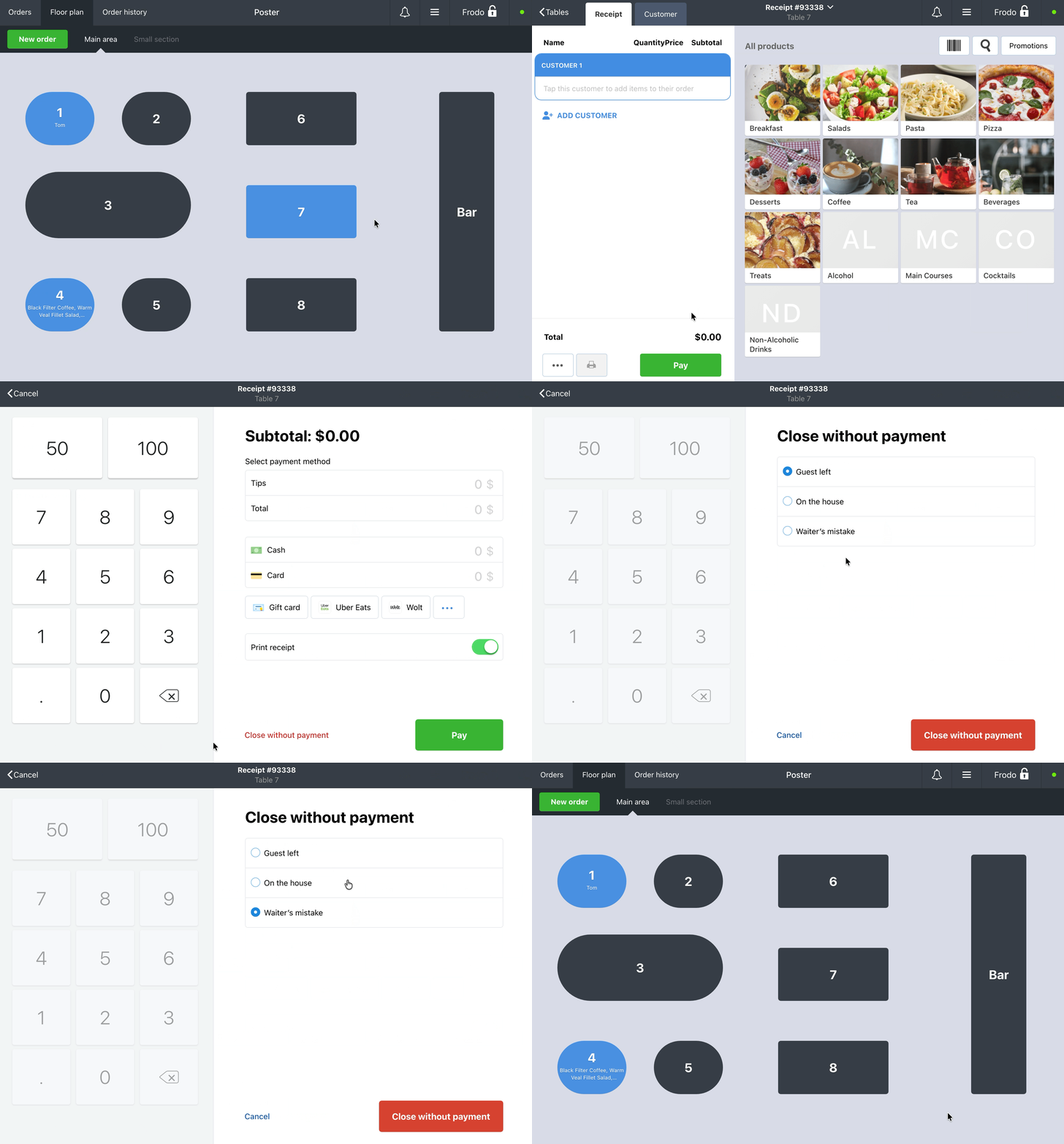
If you need to record the reason for closing an empty receipt without payment:
- Go to the required order in the POS application.
- Tap Pay.
- In the payment method selection window, tap Close without payment.
- Select a reason from the list.
- Tap Close without payment.
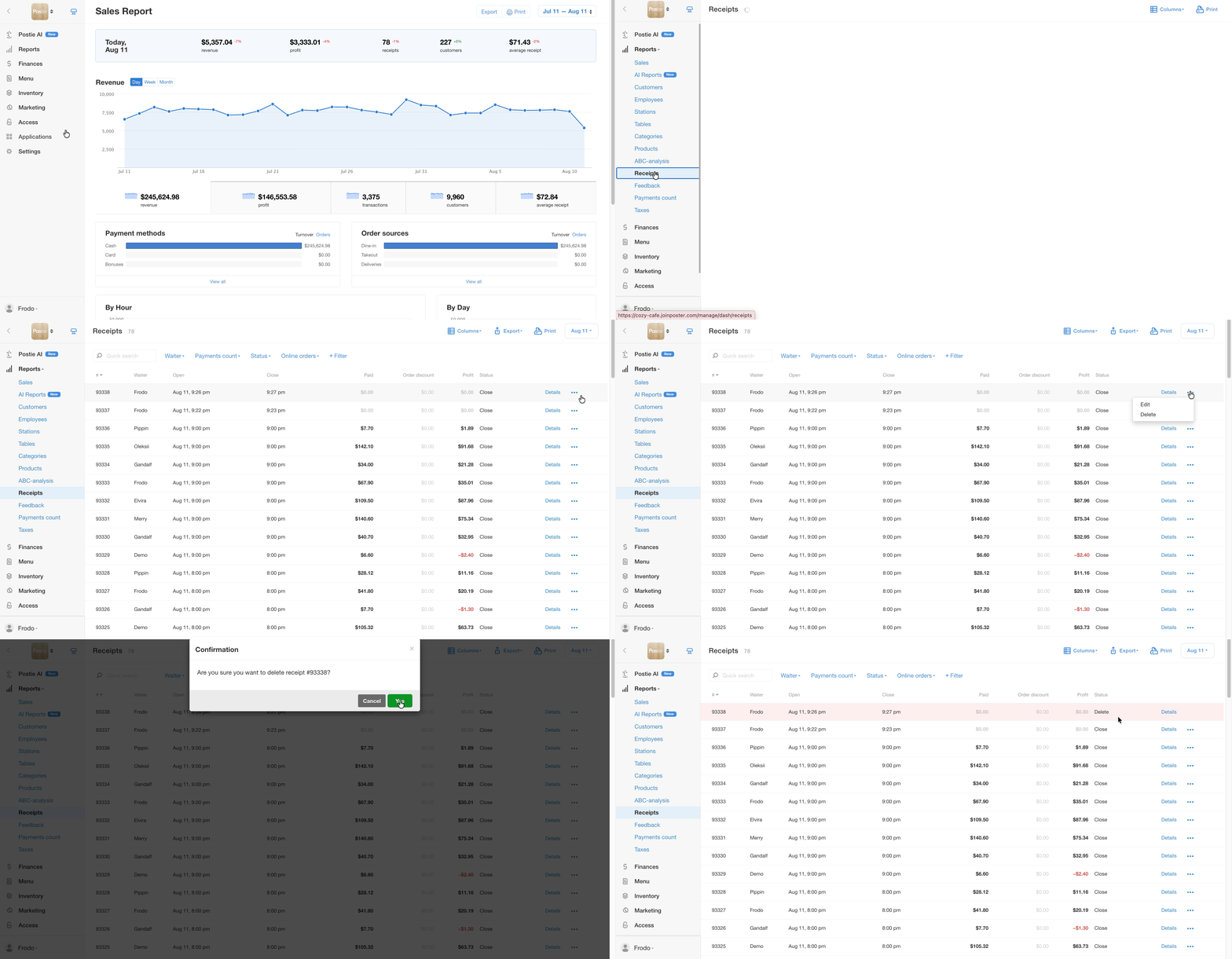
Delete an empty receipt in the management console:
- Open Reports → Receipts in the management console
- In the upper-right corner, click the calendar and select the date when the order was last edited.
- Find the required order in the list.
- Click • • • to the right of the receipt and select Delete.
Use an empty receipt for the next order
You don't have to close or delete an empty receipt right away. Leave it open and use it for the next guest: add the items ordered by the new guest to the same order and continue working with the order as usual.