
If you've forgotten your password, restore it:
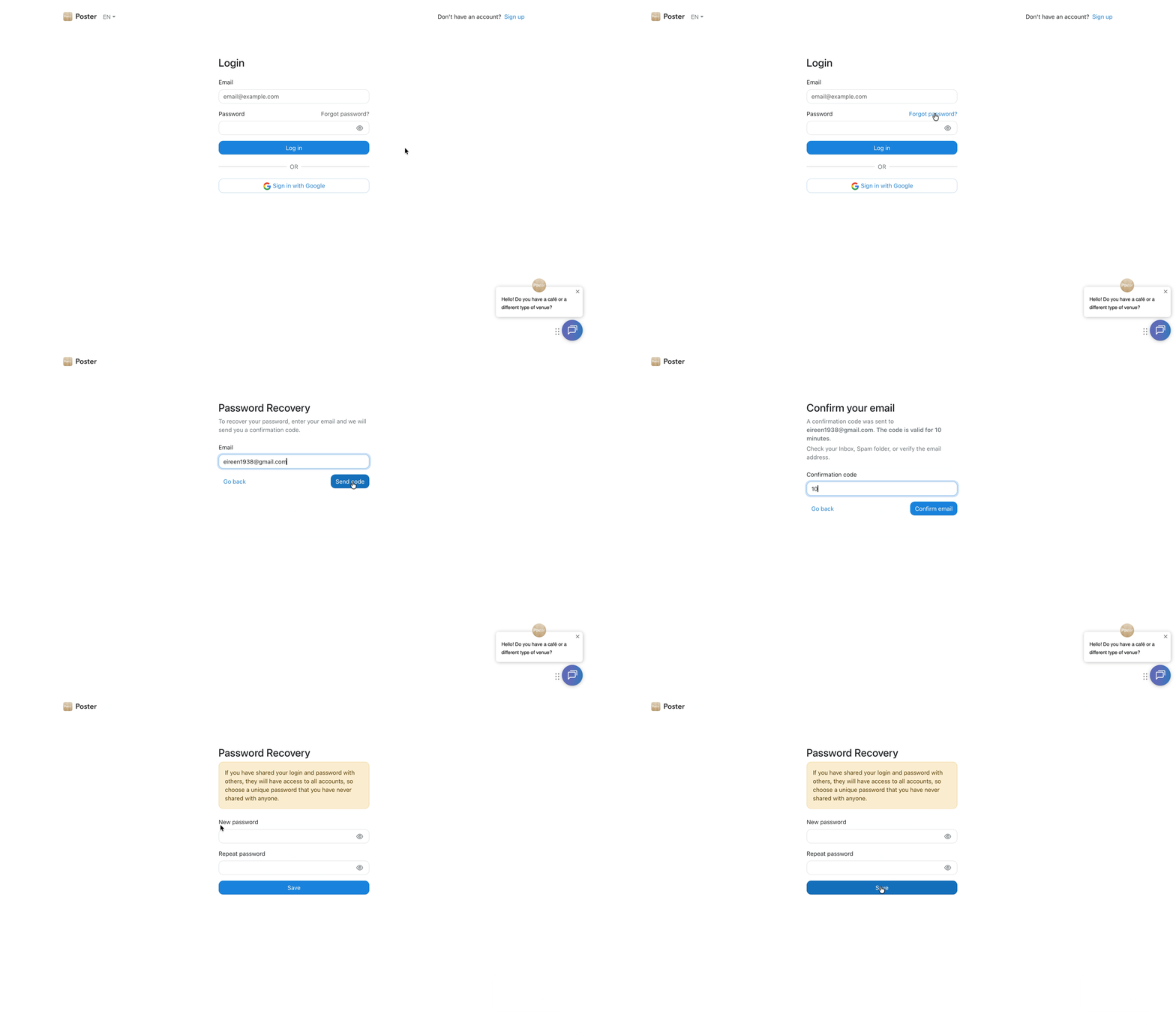
- On the login page of the Poster management consolel, click Forgot password?
- Enter the email address linked to your account. Poster will send an OTP code to that email to confirm the password recovery.
- ☝️ The code is valid for 10 minutes from the moment it's sent.
- Enter the received OTP code in the corresponding field and create a new password to log in to the Poster management console.
OTP Code Limitations
If you enter an incorrect OTP code more than 10 times, the code will be voided. The system will return you to the Poster management console login page.
In this case, request a new OTP code by clicking Forgot password? again.
Password Security
The management console password grants access to all Poster accounts registered under this email, as well as to the Poster Boss and Poster Courier apps.
Do not share it with third parties and keep it in a secure place.
Frequently Asked Questions
-
The OTP code isn't arriving by email
Check your Spam, Promotions, and Inbox folders, or verify that the email address was entered correctly. If the code still isn't there, request it again. The code is valid for 10 minutes.
If the code still doesn't arrive, please message us in chat. -
Can someone else access my account if they know my password?
Yes. The password grants access to all Poster accounts registered under that email, so never share it with anyone. -
Do I need to change the password separately in Poster Boss and Poster Courier?
No. The password used to log in to the Poster management console also works for Poster Boss and Poster Courier — there is no separate password for these apps. You only need to change it once in the admin panel, and it will apply everywhere. -
What should I do if I don't have access to the email my account is registered with?
You won't be able to change the password without access to that email. Poster confirms password changes only via an OTP code sent to the email linked to the account.Restore access to your email and try the password recovery process again.
-
How do I change my password if I'm already logged in to the Poster admin panel?
-
If you're already logged in to the management console, to change your password: open the Access → Employees tab and click Edit next to your profile. In the Admin Panel Access block, click Forgot password? and follow the steps to recover your password.
To protect your account data, use separate employee profiles and set up the necessary access rights for each one.