
Add separate storage locations to track supplies, inventory, waste, and inventory checks for each location.
What the storage list shows
The Inventory → Storage locations tab displays a table with all storage locations for your business. It includes the following columns:
- # — the storage location's number.
- Title — the storage location's name, such as “Kitchen” or “Bar”.
- Address — the storage location's address, if you entered one when creating it.
- Sum — the total value of all products and ingredients in this storage location at the current time.
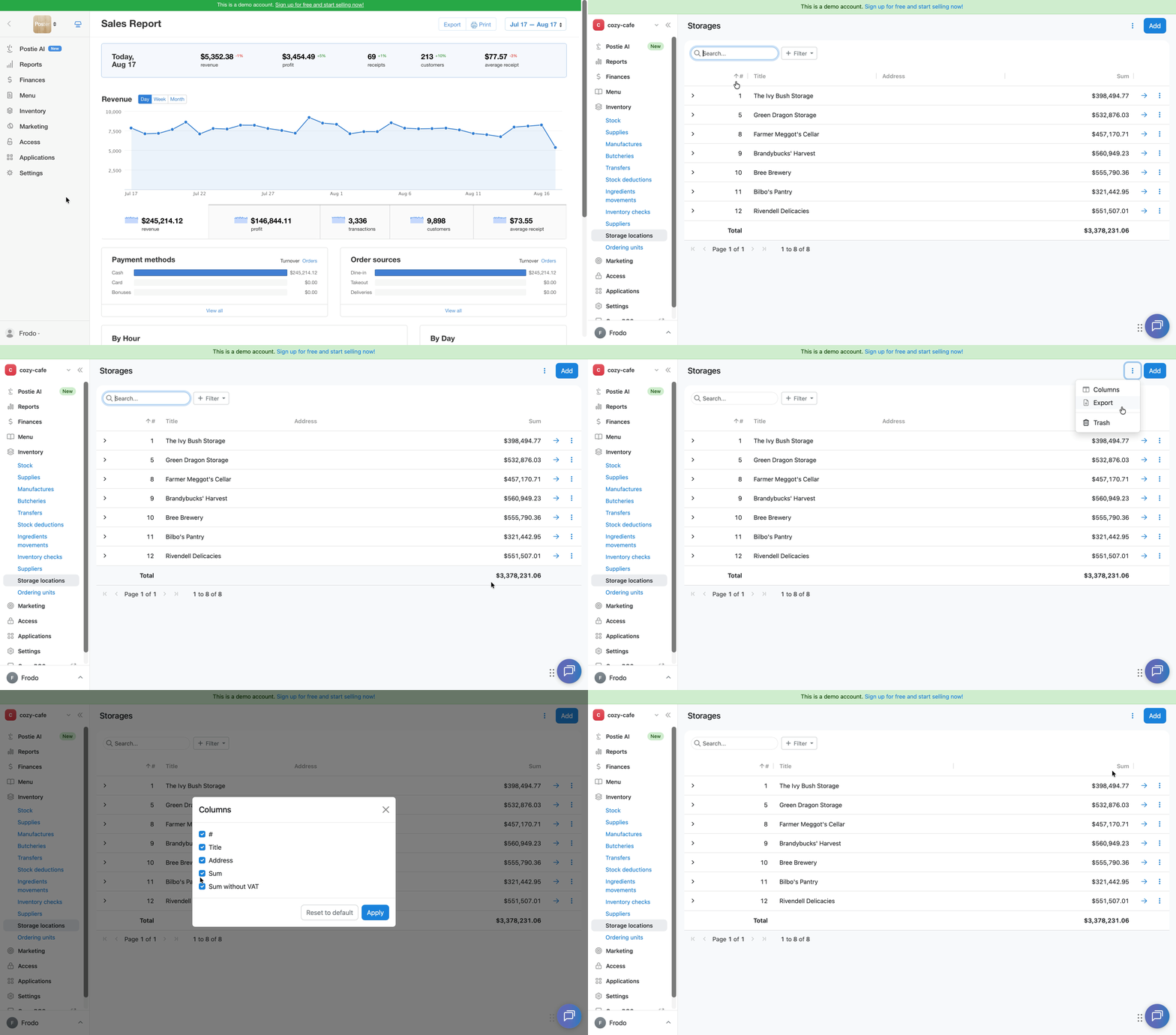
The Total row at the bottom of the table shows the total inventory value across all storage locations.
How to customize the columns: click ⋮ in the upper-right corner of the table → Columns → select the columns you want to display in the storage list.
How to export the storage list: click ⋮ in the upper-right corner of the table → Export.
How to add a new storage
💡 Additional storage locations are available only on the Mini, Business, and Pro plans. The Starter plan includes only one storage location.
To create a new storage location:
- Open Inventory → Storage locations in the management console.
- Click Add.
- Enter the storage location's name and address.
💡 The Address field is optional. - In the Locations field, select the location you want to link the storage location to.
- Click Save.
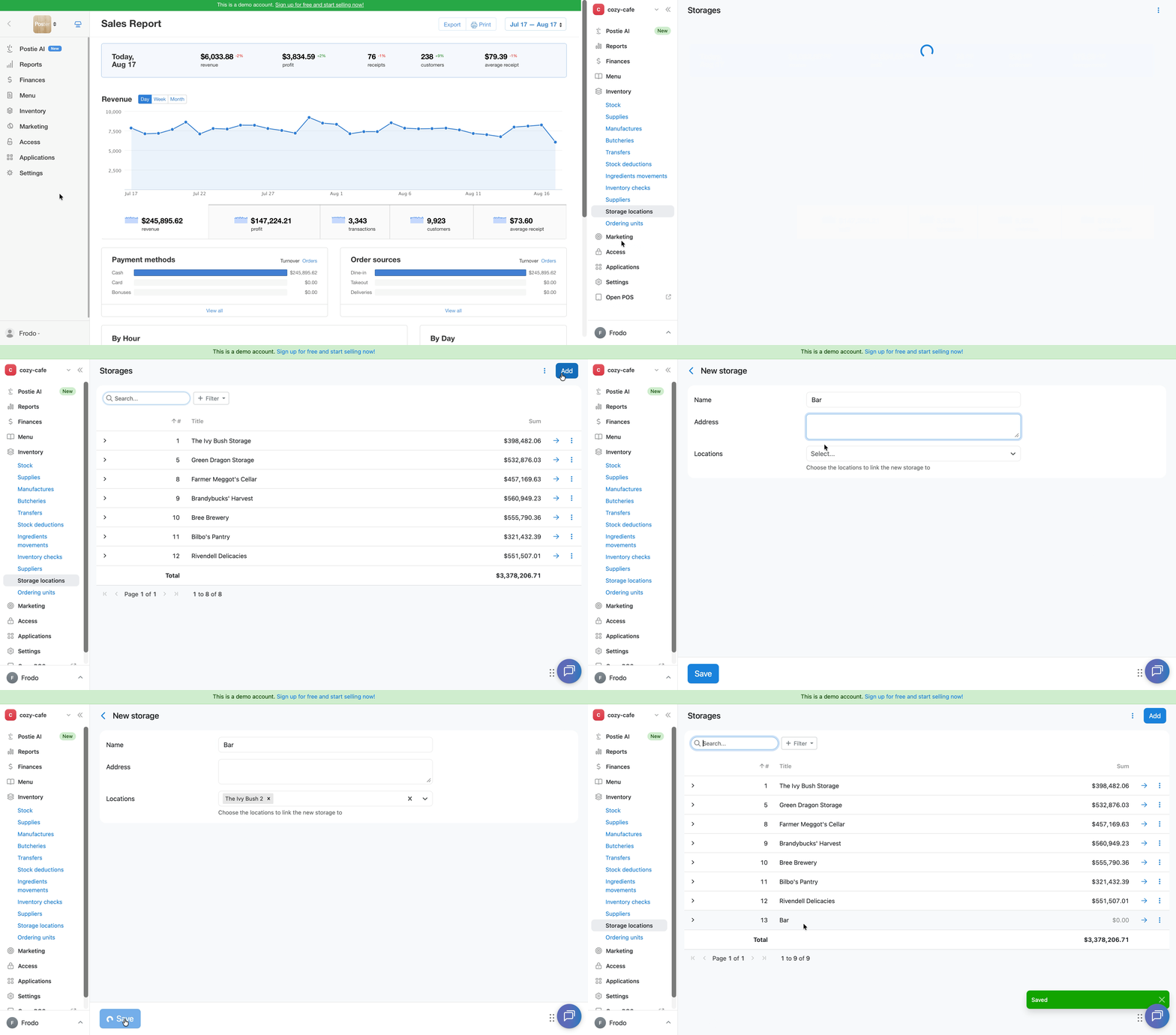
After you link a storage location to a location, Poster automatically deducts ingredients and products from it when you make sales at the POS. If you don't link a storage location to a location, Poster won't deduct items automatically when you make sales.
If you use several storage locations with the same ingredients for one location, such as storing lemons or milk at the «Bar» and «Kitchen», set up deduction rules. They determine which storage location Poster uses to deduct these ingredients.
How to change a storage location's name or address
Edit the details of an existing storage location:
- Open Inventory → Storage locations in the management console.
- Click → next to the storage location you need.
- Edit the Name or Address field.
- Save the changes.
You can link a storage to a location only when creating the storage. The Location field is not available when editing.
To unlink a storage from a location or link a new stor a link a new storage, open the Access → Locations tab in the management console and change the storage in the stock deductions settings.
How to delete a storage location
Delete a storage location when you no longer use it:
- Open Inventory → Storage locations in the management console.
- Click ︙ next to the storage location you need.
- Select Delete.
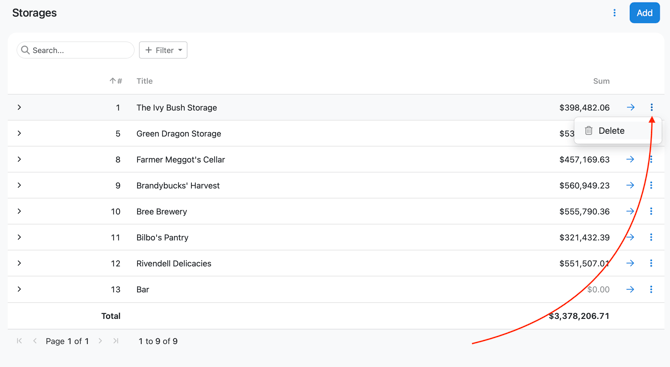
After you delete a storage location, Poster moves it and its inventory to the Trash.
How to restore a deleted storage location
Restore a storage location from the Trash if you deleted it by mistake:
- Open Inventory → Storage locations in the management console.
- Click ︙ in the upper-right corner and select Trash.
- Click ︙ next to the storage location you need.
- Select Recover.
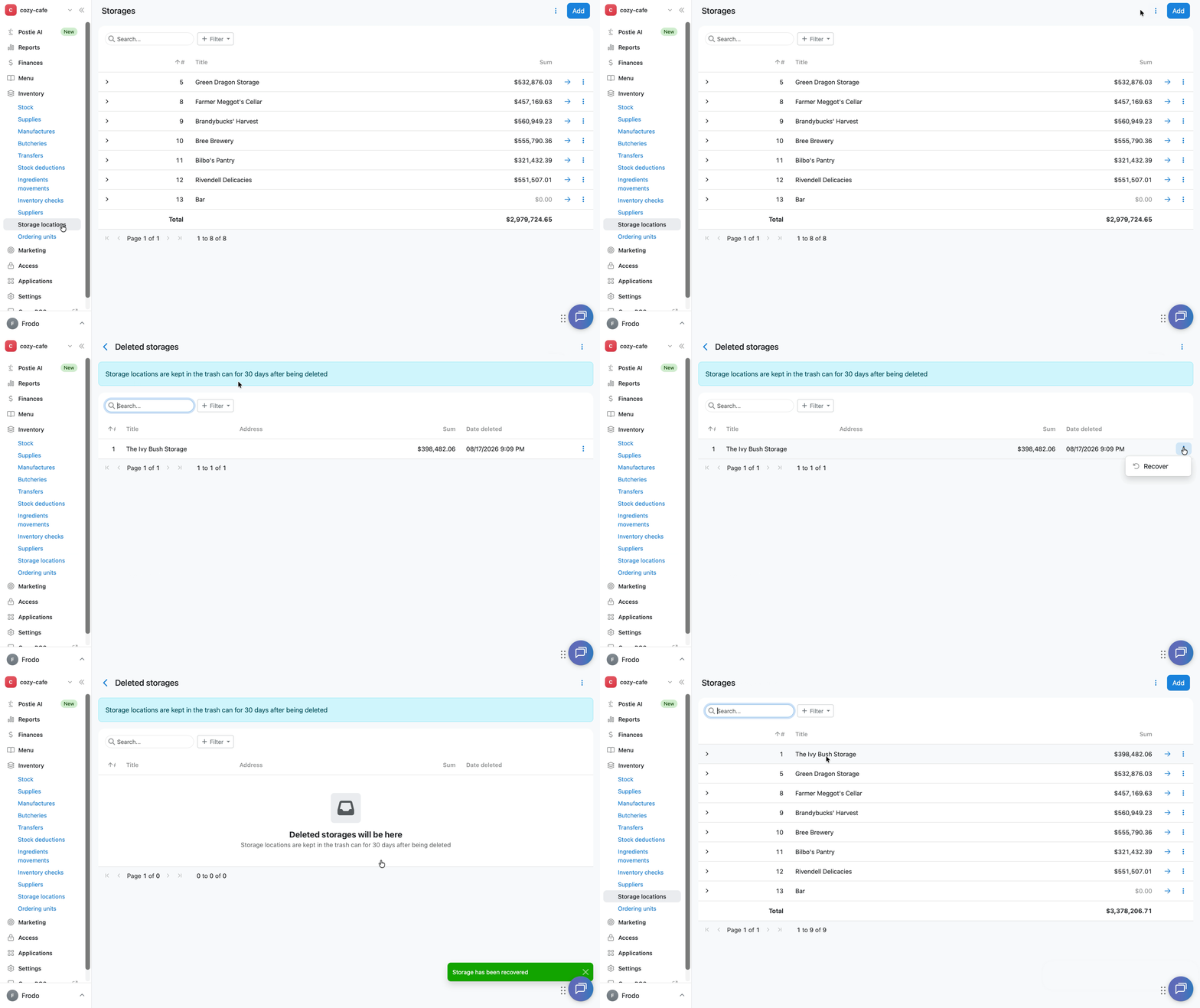
You can restore a storage location together with its inventory within 30 days of deletion.
To track the inventory of ingredients and products in your storage locations, make your first product supply.