
Let's download and activate your QR codes. Once set up, customers will be able to scan these codes to view your menu or website and share their feedback.
To download your digital QR codes for printing:
- In the Poster QR app, open the QR code tab.
- Choose a light or dark theme layout.
- Wait for the QR code archive to download.
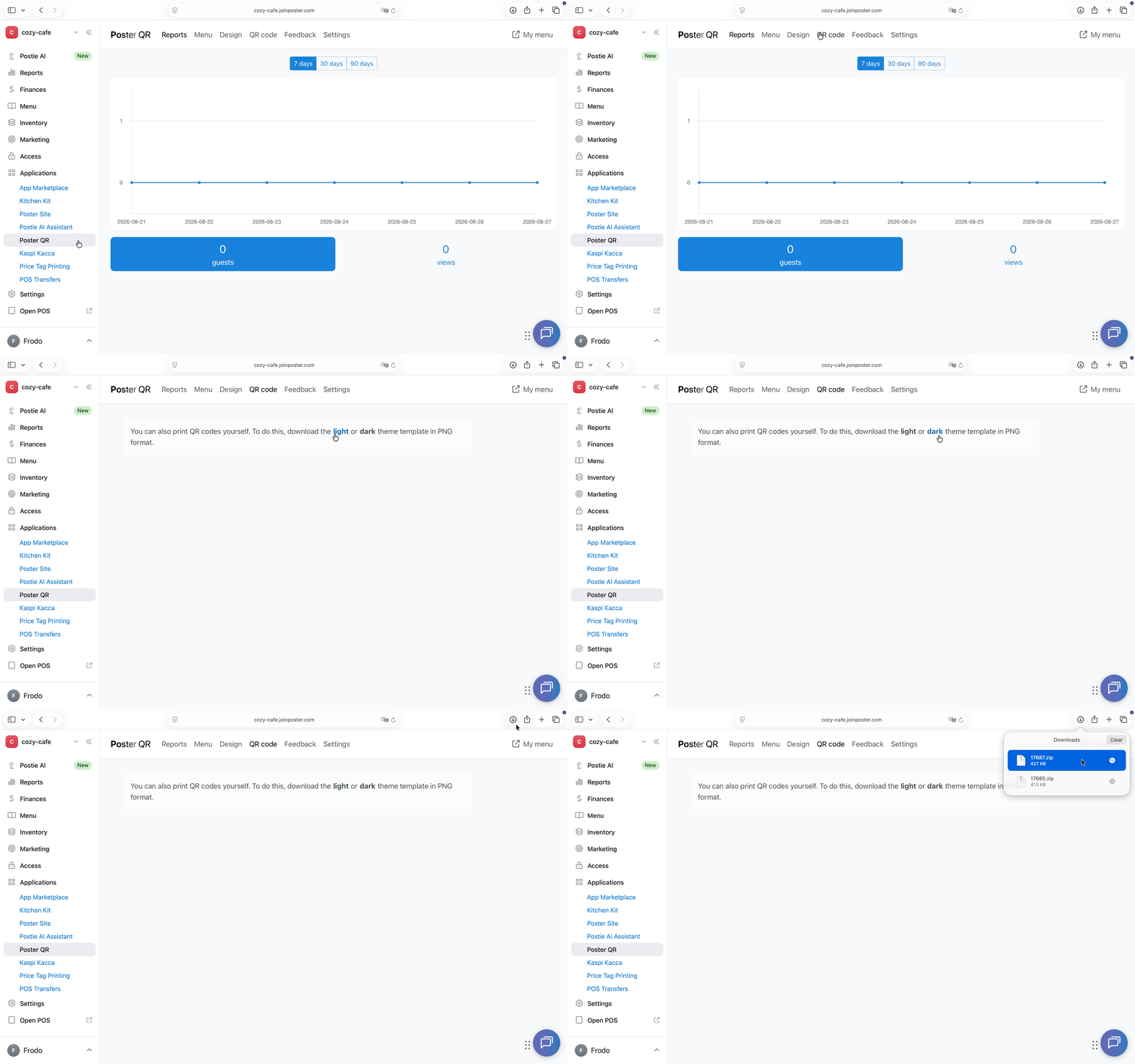
☝️ Poster QR generates 9 QR codes in each archive.
Activate the QR codes
- Scan the QR code with your smartphone's camera.
- Follow the steps after scanning.
- Log in to your Poster account.
- Assign each sticker to the corresponding table.
- For example: Sticker A1 = Table 1; A2 = Table 2; A3 = Bar, etc.
- The system will automatically save your mapping to the chosen tables
- Stick the stickers on the tables and at the counter area.

💡 To activate more QR codes or replace old ones, just download a new sticker and scan it to update the table mappings.
🛎️ If your location doesn't have tables:
If you have a takeout cafe without a floor plan:
- Scan the QR code with your smartphone's camera.
- Follow the steps after scanning.
- Log in to your Poster account.
💡 No need to select tables here. QR codes are automatically activated after logging into Poster. Just place stickers near the counter area.
Feel free to contact our customer support if you have any questions or concerns. We're available in chat @joinposter.com and email contact@joinposter.com